Skip to Content
Pro-A-Motors / Inventory & Operations

A complete workflow for counting stock.

Assign the work. Capture what is on the shelf. Investigate differences. Apply a reviewed stock decision—all inside Odoo.

Explore the actual module ↓
Scope & assignment→Warehouse count→Office review→Stock decision & history
Inside the module

The whole workspace.
Then the decisions inside it.

Explore 8 real module views: the production review workspace and a populated staging scanner. Product codes, quantities and location context remain readable. Select a view or enlarge any screenshot to inspect the controls.
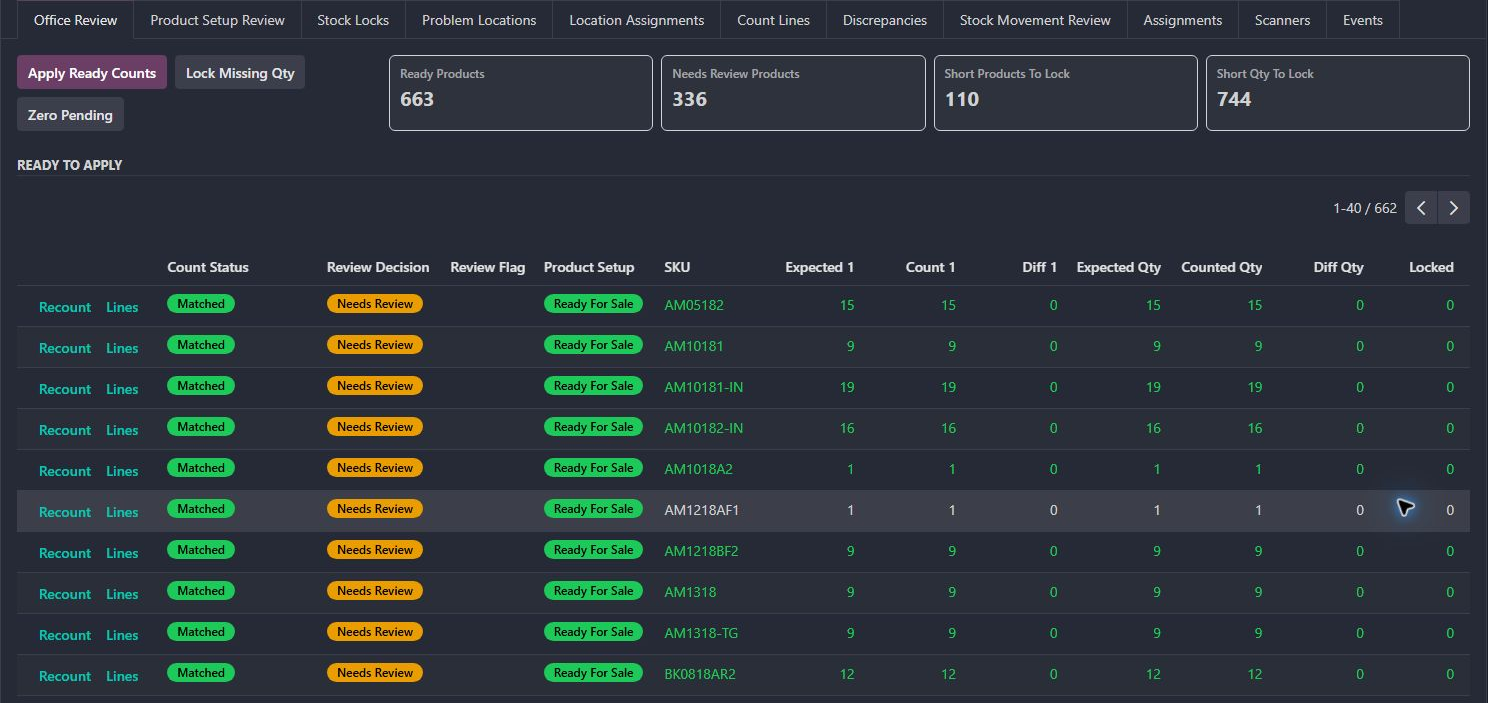
The review workspace / Production Odoo screenEnlarge screenshot ↗
Actual Office Review workspace from an active cycle count. The full table width, workflow tabs, review actions, SKUs and quantities are preserved.
01 / Inventory reviewer

The review workspace

  • Compare expected and counted quantities beside the product’s status.
  • Separate ready products from products needing review or another round.
  • Open the count lines, request a recount, or proceed to the review gate.
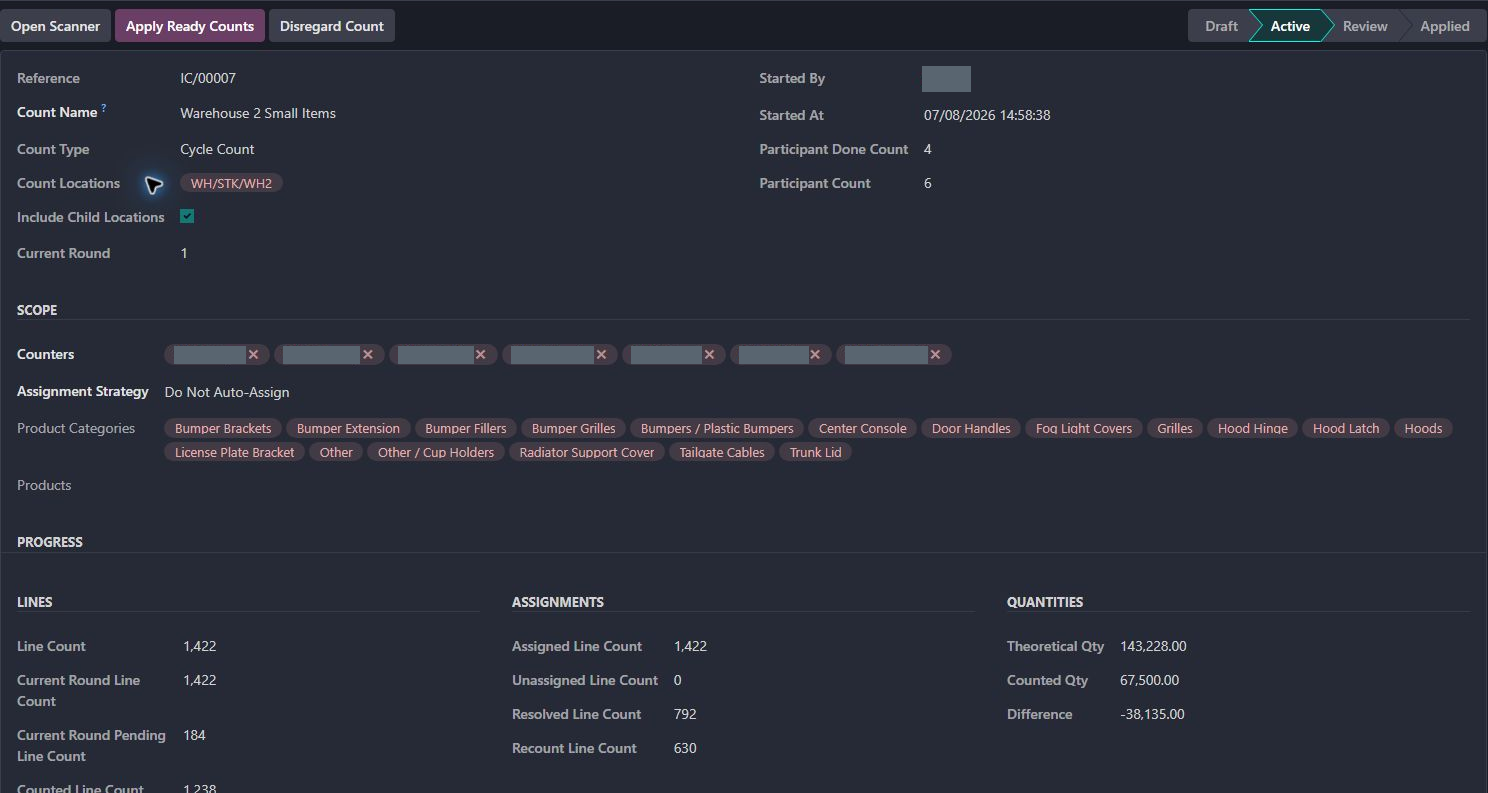
Define the scope / Production Odoo screenEnlarge screenshot ↗
Actual cycle-count session showing scope, categories, assignment strategy, round and progress. Only staff names are covered.
02 / Count supervisor

Define the scope

  • Set up a physical or cycle count with a location and child-location scope.
  • Focus work by product or category, and select the counters.
  • Choose location, product or even-line assignment, or manage assignments manually.
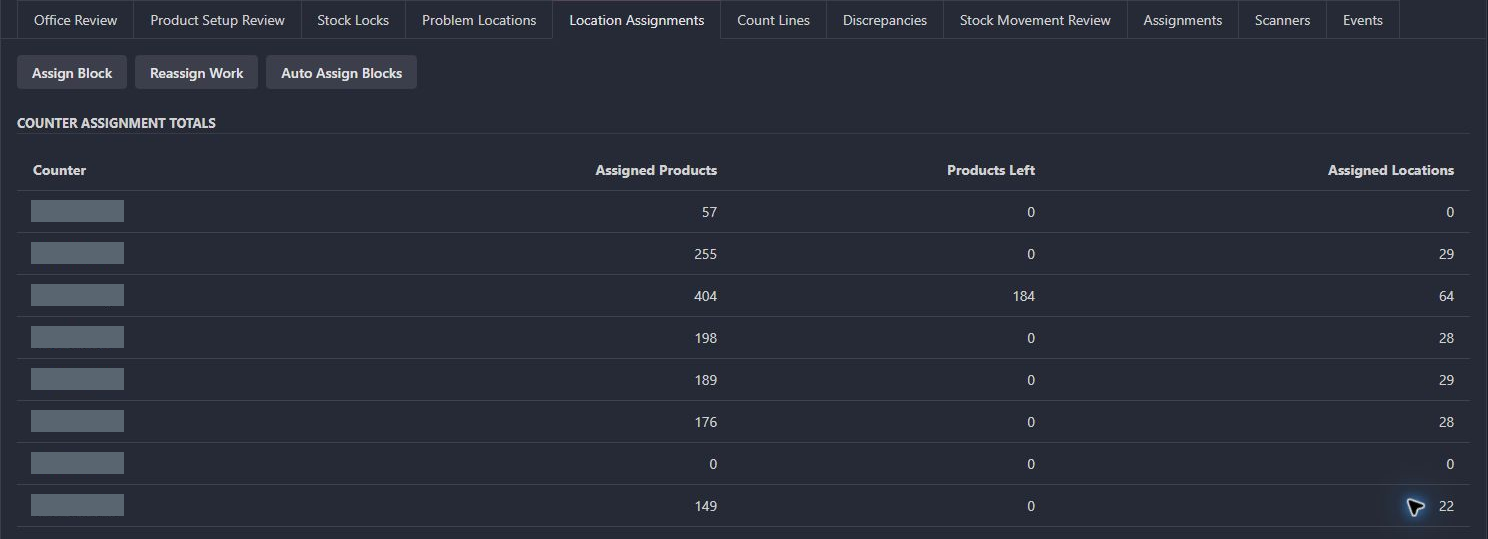
Assign and rebalance work / Production Odoo screenEnlarge screenshot ↗
Actual counter-assignment overview, with all workload columns and assignment controls visible. Staff names alone are covered.
03 / Count supervisor

Assign and rebalance work

  • See assigned products, remaining products and assigned locations by counter.
  • Assign a block of locations or use automatic block assignment.
  • Reassign remaining work when the workload needs to move to another counter.
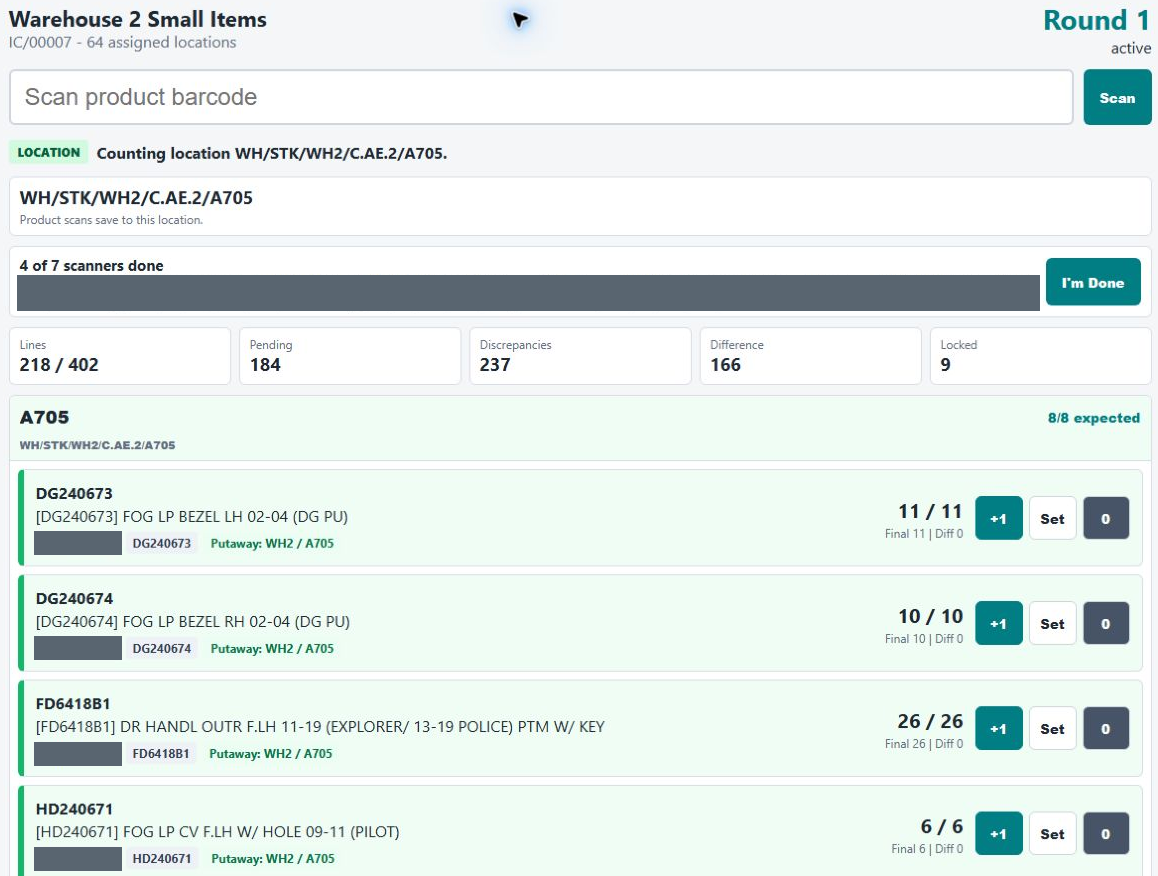
Count at the location / Staging scannerEnlarge screenshot ↗
Actual populated scanner from the Pro-A-Motors staging environment. Existing product quantities and scan controls are visible; staff names and the participant roster are covered. No product quantities were changed.
04 / Warehouse counter

Count at the location

  • Select an assigned location or scan its barcode before counting products.
  • Scan products, add one, set a corrected quantity or explicitly record zero.
  • Compare saved counts with expected quantities and mark your scanner work done.
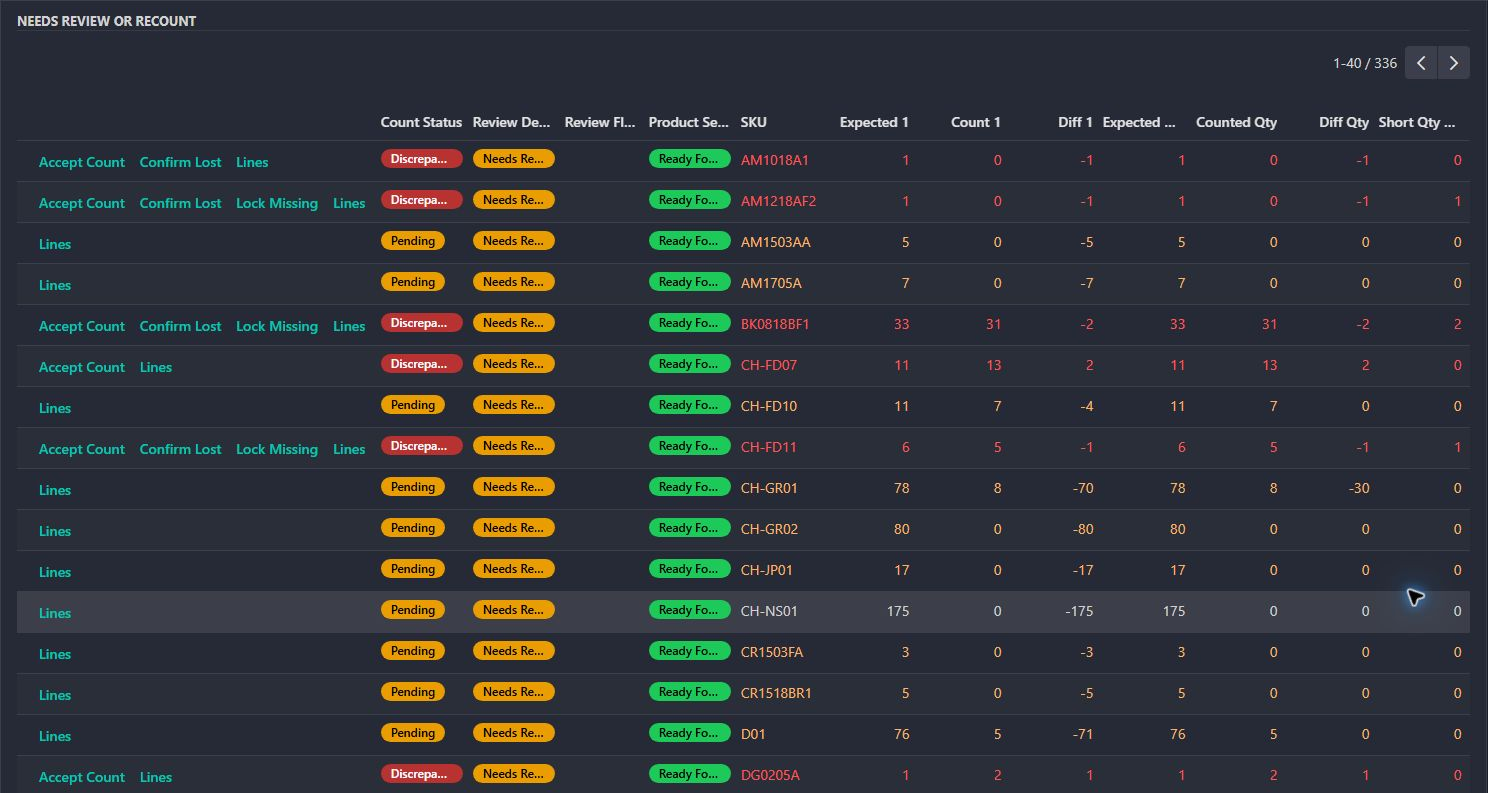
Resolve the differences / Production Odoo screenEnlarge screenshot ↗
Actual Needs Review Or Recount queue. Pending lines, shortages, overages and their available actions remain unchanged.
05 / Inventory reviewer

Resolve the differences

  • Distinguish pending work, completed shortages and completed overages.
  • Inspect the underlying lines before accepting a count or confirming lost stock.
  • Keep unresolved work available for a recount rather than treating every scan as an adjustment.
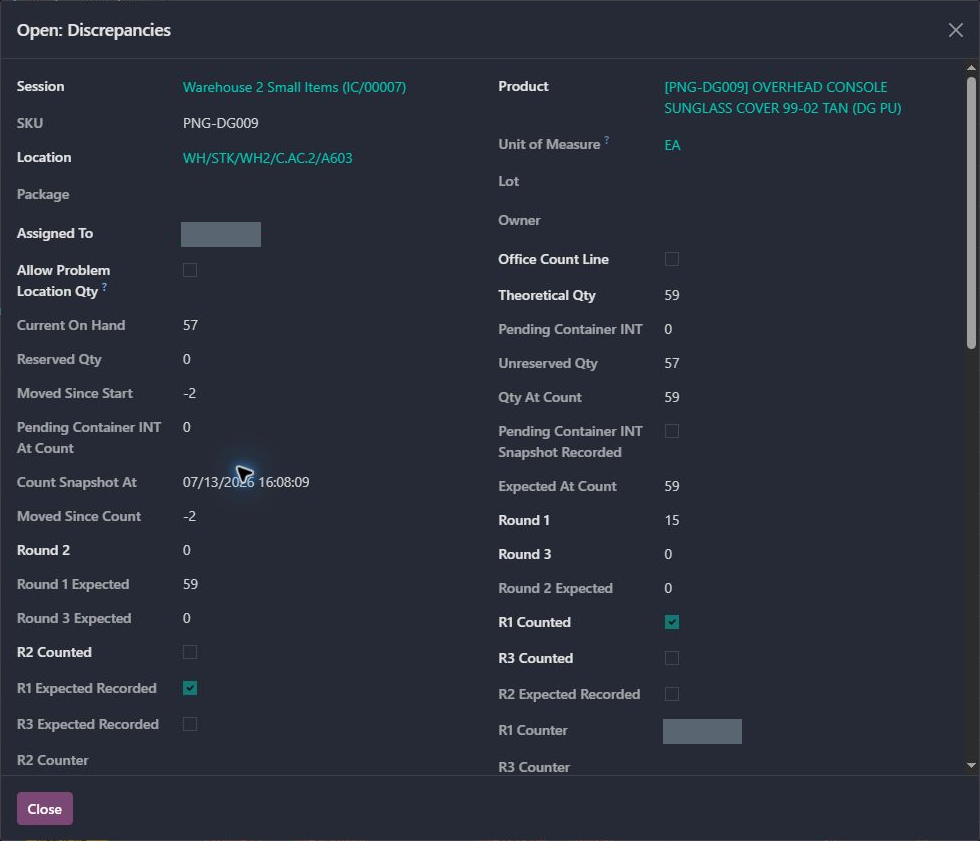
Investigate one count / Production Odoo screenEnlarge screenshot ↗
Actual discrepancy detail for PNG-DG009. Count snapshots, movement, quantities and product context remain visible; two staff names are covered.
06 / Inventory reviewer

Investigate one count

  • Compare the expected quantity at count time with the saved round result.
  • Check current on-hand stock, reservations and movement since the observation.
  • Use the product, location and round context to investigate the difference.
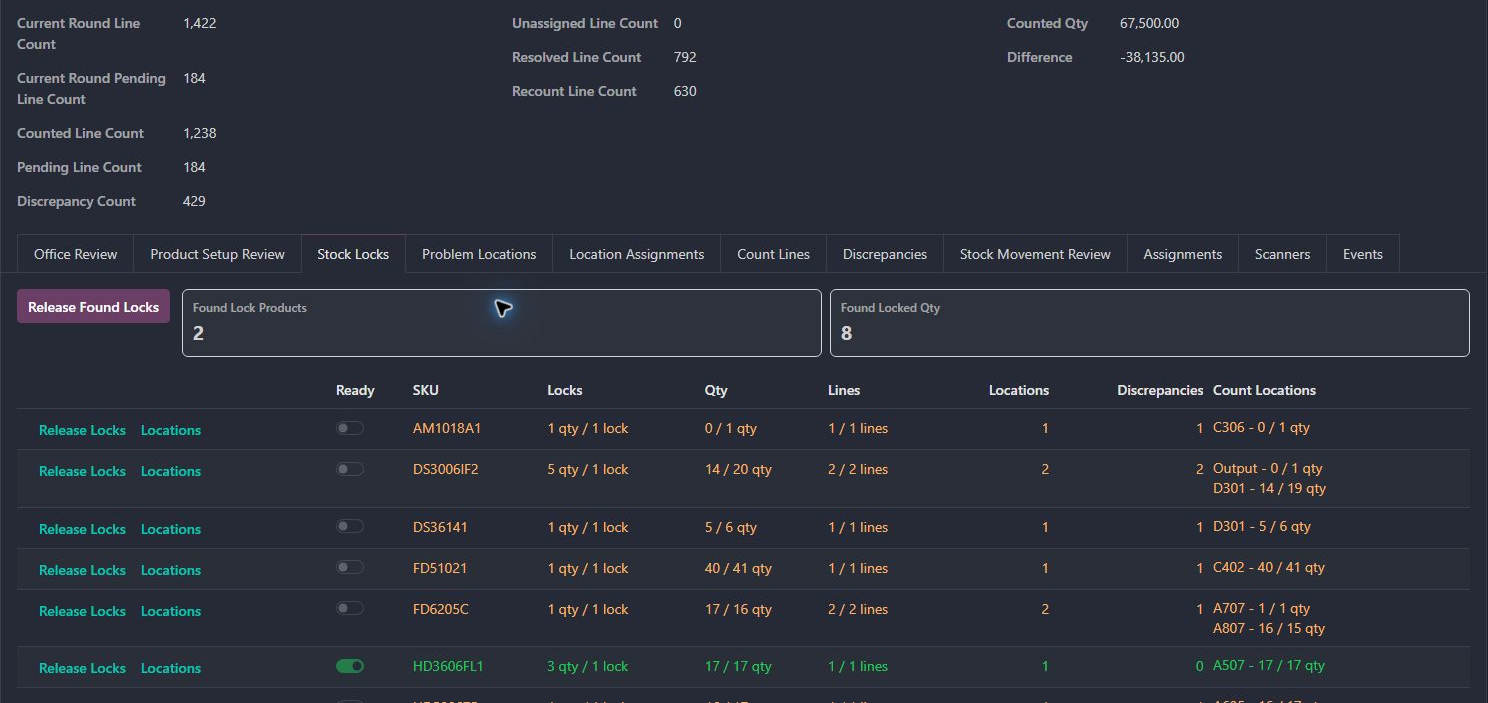
Protect and release stock / Production Odoo screenEnlarge screenshot ↗
Actual Stock Locks workspace, showing both ready and unresolved products, counted quantities and location evidence. No locks were changed.
07 / Inventory reviewer

Protect and release stock

  • Review missing-stock locks alongside quantities counted at each location.
  • See which products have enough evidence to release a found-stock lock.
  • Open location details before releasing a hold; unresolved products stay visible.
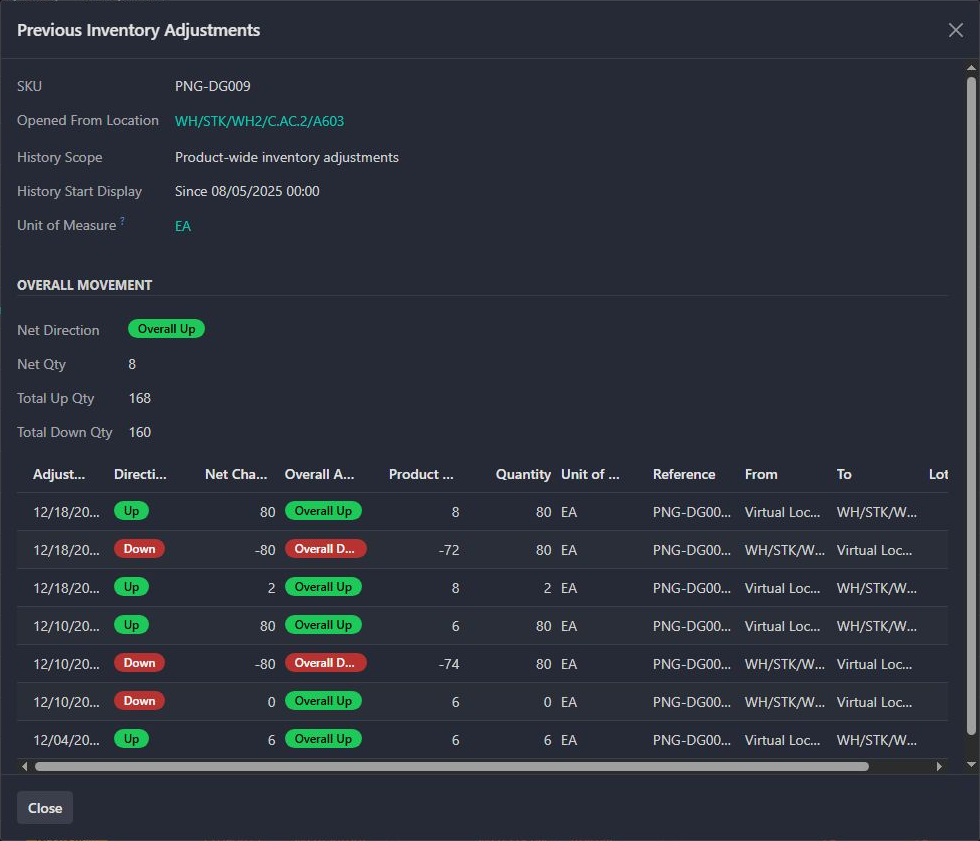
Keep the adjustment history / Production Odoo screenEnlarge screenshot ↗
Actual product-wide adjustment history opened from the same PNG-DG009 count line. The dates, quantities, directions and location references are preserved.
08 / Inventory reviewer

Keep the adjustment history

  • Open earlier inventory adjustments directly from a count line.
  • Read increases, decreases, net movement and source/destination locations.
  • Keep the history’s product-wide scope distinct from the location under review.

Office screens: Pro-A-Motors production. Scanner screen: Pro-A-Motors staging. Staff identities are covered. These are recorded observations, not a completed stock reconciliation.

Read one actual row / BK0818BF1

Two fewer units counted.
Several possible next steps.

The review queue shows 33 expected and 31 counted for this product. The difference is visible alongside the decisions the reviewer can make.

Expected
33
Counted
31
Difference
−2
Current decision
Needs review

Check the evidence

Open the product’s count lines and compare locations, rounds and movement. A shortage at one location may need investigation elsewhere.

Choose the next action

Depending on the evidence, request another count, accept the observation, confirm lost stock or protect the missing quantity with a lock.

Keep the outcome separate

The screenshot shows an unresolved review. It does not establish a loss or a final adjustment. Applying stock is a later, controlled action.

The scope of the system

Decisions this system handles.

The count is one part of a larger control loop: assigning the work, recording what was observed, investigating movement and deciding which stock can be trusted.

Work is unfinished

Compare assigned products, remaining work and locations; rebalance the workload before closing the count.

The next handoff The next counter receives an explicit scope.

A count differs from expected stock

Open the count detail, inspect movement since counting and request another round where needed.

The next handoff The reviewer receives an observation with time and location context.

Missing stock should not be promised

Use the review and stock-lock workflow to keep unresolved quantities visible and protected.

The next handoff Sales availability can reflect the held quantity.

A reviewed adjustment needs explaining

Follow the product’s adjustment history and its references across locations.

The next handoff The next investigation starts with the earlier decisions available.

These paths describe the implemented workflow. The captures show specific existing records; they do not demonstrate every branch being executed.
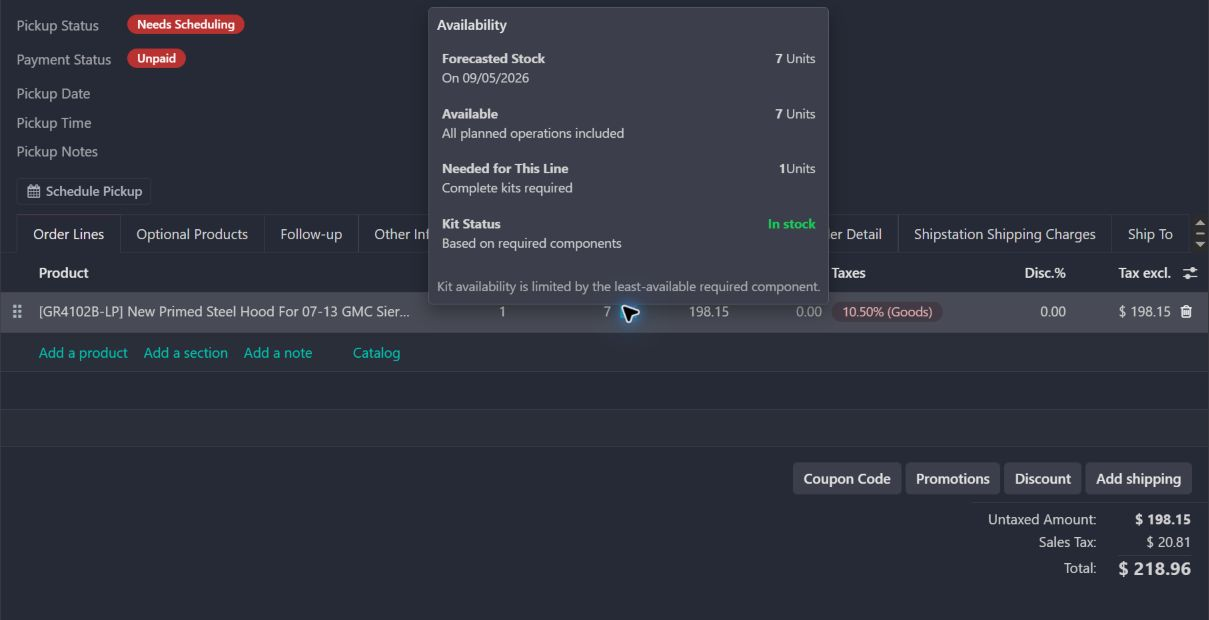
Explore the related workflows.

Actual availability popover on an existing quotation for kit GR4102B-LP. The screen shows seven available units and one complete kit needed. Customer identity and chatter are outside the crop; no quantities or order state were changed.
Related workflow / Actual screen

Sales stock availability ↗

See how stock restrictions reach a sales-order availability decision.
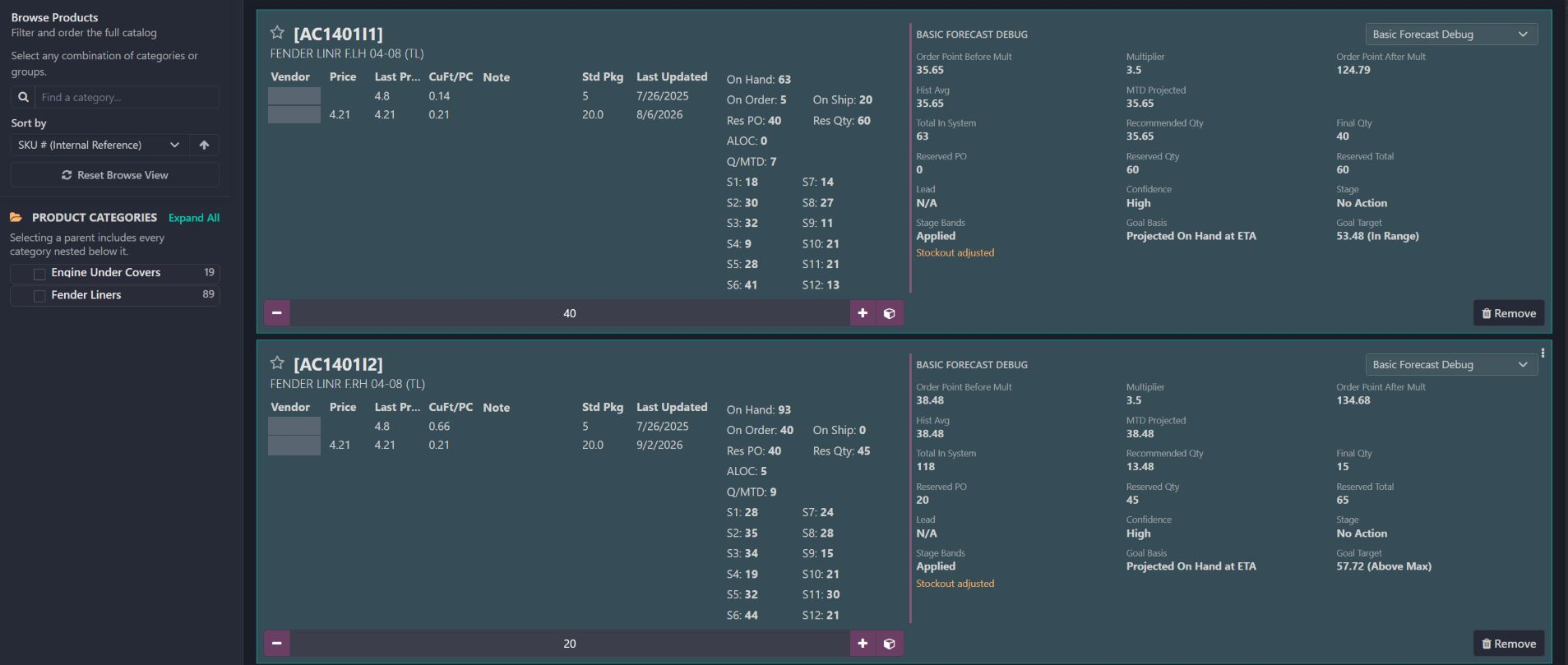
Actual purchase-order catalog with two product cards and their Basic Forecast Debug panels. The category browser, supplier-price columns, stock signals and order controls are preserved. Supplier names and the order header are protected.
Related workflow / Actual screen

Product purchasing ↗

See the supply and demand context that buyers use alongside physical counts.

From the floor to the office

What the complete module allows people to do.

01

Count in the warehouse

A dedicated barcode interface starts with a location scan, then accepts product scans. Counters can correct a quantity, explicitly count zero and mark their work done.

02

Preserve count rounds

The workflow retains earlier round results and supports additional recount rounds. Reviewers can compare observations instead of losing the first count when someone counts again.

03

Review more than quantity

Product setup, unexpected locations, stock movement and active locks have their own review surfaces. A quantity match alone does not answer every stock question.

04

Apply a deliberate adjustment

Authorized reviewers use Apply Ready Counts. The backend checks pending work, recount eligibility and product-setup decisions before applying eligible lines under an adjustment reference.

The views above show existing count records and the populated staging scanner. Additional-round and adjustment behavior is also verified against the module source. No product scans, count edits, recounts, stock-lock changes or stock adjustments were performed for this walkthrough.

Why we made it

A count needs more than a quantity field.

A physical count crosses people, locations and time. Work has to be assigned, observations saved, stock movement explained and differences reviewed before the business relies on the result.

We built a connected workflow so the next person can inspect the evidence behind the number.

What changed for the team
  • Supervisors can see the remaining workload and move it between counters.
  • Counters have a focused location-and-product scanning workflow.
  • Reviewers can separate incomplete work, real differences and stock that moved after counting.
  • Inventory adjustments retain a reference and can be investigated through history.
The details that matter

Keep the meaning of each number intact.

Pending is not zero

A line awaiting a count is different from a counter explicitly recording zero. Pending work remains part of the review gate.

A saved count has a time

The detail view shows 59 expected, 15 counted and −2 moved since that count. Keeping those values separate lets the system account for later stock movement.

History has a scope

The history view is product-wide, even when opened from one location. Reviewers can see earlier corrections elsewhere without mistaking them for this location’s count.

Capture context and implementation foundation

Inventory SKUs, quantities and warehouse location codes are retained for readability as requested. Staff names and the scanner participant roster are covered. Captures are real pixels from existing records; no values or controls were recreated.

Office views were captured from production. The populated scanner was captured in the user-provided staging environment using an existing assigned location. Selecting that location registered this scanner session; no product scans, count edits, recounts, stock-lock changes or stock adjustments were performed for the walkthrough.

Custom Pro-A-Motors modules extend Odoo Inventory and Barcode and connect to the purchasing and collaborative-scanning extensions.

Which handoff is slowing your team down?

Talk through your workflow →